AI Tools for Designers
How to Use Them Without Losing Your Taste
TL;DR:
AI will not make you a better designer, but it can make a good designer much faster. Use it to explore more directions, prototype earlier, and automate grunt work — not to outsource decisions. You'll learn how to plug AI into image generation, prototyping, design systems, and client workflows, and how to keep taste, ethics, and quality in your own hands.

Who this guide is for
This guide is for graphic designers, UI/UX designers, and illustrators who want to integrate AI into their creative process without sacrificing quality or originality. It's also for creative directors managing teams that are starting to use AI, and freelancers who need to stay competitive without losing what makes their work distinctive.
You should have a working knowledge of design tools (Figma, Photoshop, Illustrator, or similar) and a basic understanding of visual principles. No machine learning background is required.
Graphic Designers
UI/UX Designers
Illustrators & Freelancers
What you'll learn
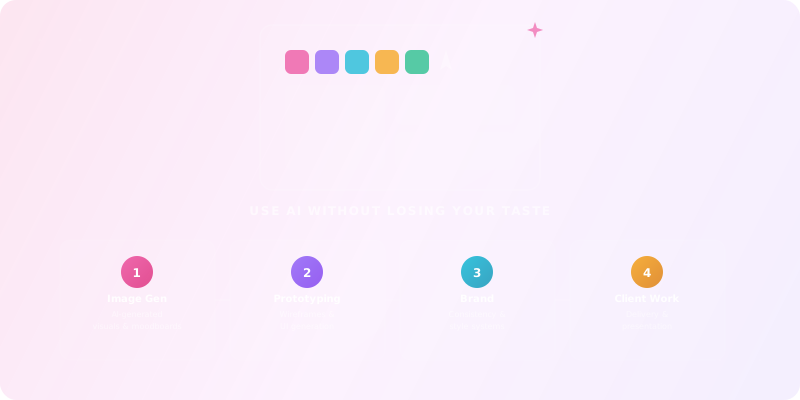
AI Image Generation
Treat image models as thinking tools, not magic buttons. From prompt to usable asset.
Prototyping & UI
Let AI handle low-risk structure and boilerplate while you own flows and hierarchy.
Brand Consistency
Define strong constraints so AI reinforces your system instead of eroding it.
Client Workflows
Use AI to strengthen your position — not make clients wonder why they hired you.
Taste & Quality
Keep judgment, art direction, and craft in your own hands at every stage.
Ethics & Licensing
Navigate commercial use, attribution, and legal constraints for AI-generated assets.
Image Generation That Actually Serves the Design
What image models are good at — and where they break
Most designers hit generative AI once, get a few pretty images, and then never manage to use them in a real project. The goal here is different: treat image models as tools for thinking and exploring, then pull only what you need into your real design stack. For a deeper dive into image generation techniques, see our AI Image Generation Mastery course. And for better prompts, check the Prompt Patterns Cheat Sheet.
Modern diffusion models are excellent at exploring visual directions quickly (style, mood, composition), ideating hero images, illustrations, and backgrounds, and filling gaps in moodboards when stock photos don't cut it.
They are weak at precision (brand colors, exact layouts, typography), consistency across large systems (40 screens, 20 markets), and edge cases like accessibility, complex data visualizations, and legal constraints.
Key insight
A simple workflow: from prompt to usable asset
1. Define intent, not “coolness”
Start with a single sentence that explains why you're generating this image.
- “I need three hero directions for a new telemedicine brand: calm, trustworthy, not sterile.”
- “I need abstract backgrounds that hint at AI and data, but don't scream ‘tech bro’.”
2. Use structured prompts, not vibes
Break prompts down into: subject (what's in the frame), style (art direction, references), composition (close-up/wide, negative space), color (palette or mood), and medium (photo, 3D, illustration, collage).
3. Generate wide, then narrow
- First pass: 20–40 images across 3–5 directions
- Second pass: pick 2–3 directions worth refining
- Third pass: focus on variations, crops, and details
The point is not to find the one perfect image. The point is to learn what works visually for this project, then rebuild the final assets in your normal tools.
4. Rebuild, don't just paste
- Vectorize iconographic elements or recreate them as vectors
- Recreate compositions in Figma or your layout tool
- Use AI images as reference or backdrop, not as the entire product
You are helping me explore visual directions for a design project.

Project type: [website / mobile app / brand campaign / dashboard / etc.]
Target audience: [who is this for]
Brand keywords: [3-5 adjectives, e.g. calm, trustworthy, human, bold, experimental]
Visual references: [describe 2-3 brands, artists, or examples you like]
Constraints: [no people / no text / must work with light theme / must be abstract, etc.]

Task:
Propose 5 image prompts I can use in an AI image generator.
Each prompt should have:
- A clear subject (what we see)
- A style and medium
- Composition and framing
- Color mood
- One or two reference cues (e.g. "in the spirit of Swiss poster design")

Output: List them as P1-P5, one line per prompt.
Concept Board Sprint
- 1Pick a real project you're working on (or invent a realistic one).
- 2Write a one-paragraph creative brief.
- 3Use an image generator to produce at least 20 variations based on that brief.
- 4Curate one board with exactly 6 images: 2 that match your initial mental picture, 2 that challenge it, 2 that you didn't expect but like.
- 5Ask yourself: what do these images have in common? What do you NOT want?
- 6Turn that into 5-10 written design principles for the project.
Image Generation Tools
Explore AI image generators to use in your design workflow.
Sora
Create stunning, realistic videos & audio from text, images, or video—remix and collaborate with Sora 2, OpenAI’s advanced generative app.
Freepik AI Image Generator
Generate on-brand AI images from text, sketches, or photos—fast, realistic, and ready for commercial use.
Adobe Photoshop
Create, edit, and design with industry-leading AI-powered image innovation.
Canva Magic Studio
All the AI magic of Canva, in one place.
Leonardo.Ai
Create production-ready visuals with AI-powered creativity
Adobe Express
Bring ideas to life faster with AI | Adobe Express
Design Automation and Prototyping with AI
Where AI can speed up UI/UX work
Most AI prototyping demos look magical and fall apart the moment you try to use them in a real app. The trick is to let AI handle low-risk structure and boilerplate, while you stay in charge of flows, hierarchy, and interaction.
AI is useful for
- Turning rough ideas into first draft wireframes
- Generating alternative layouts for a given set of components
- Filling screens with realistic sample content instead of lorem ipsum
- Creating quick variants for A/B tests or stakeholder discussions
AI is not great at
- Information architecture for complex products
- Edge-case UX (error states, security flows, accessibility)
- Deep interaction design
Use AI to get to “something you can move around” faster, then apply your usual critique and heuristics.
A practical workflow inside your design tool
1. Describe the flow, not just the screen
Instead of “design a dashboard”, spell out: who is the user, what is their main job-to-be-done, what's the primary action, and what decisions must this UI support.
2. Generate first draft layouts
Limit the number of components you allow. Give clear layout hints like “top nav + left sidebar + main content + right insights rail”. Ask for multiple options, not one “perfect design”.
3. Use AI as a layout critic
Once you have a draft, ask an AI assistant: “Where is the hierarchy confusing?”, “What would be hard for a first-time user to understand?”, “Which components are redundant?”
Don't blindly apply every suggestion. Treat it like a junior designer's critique.
4. Bake AI into your design system
- Use AI to generate base tokens: color names, type scale, spacing rules
- Use AI to describe component usage guidelines (“When to use this vs. that”)
- Use AI to create variations: mobile adaptations, dark mode versions
UI & Prototyping Tools
Explore AI-powered design and prototyping tools.
Freepik AI Image Generator
Generate on-brand AI images from text, sketches, or photos—fast, realistic, and ready for commercial use.
Adobe Photoshop
Create, edit, and design with industry-leading AI-powered image innovation.
Canva Magic Studio
All the AI magic of Canva, in one place.
Leonardo.Ai
Create production-ready visuals with AI-powered creativity
Adobe Express
Bring ideas to life faster with AI | Adobe Express
Adobe Firefly
Create your way with Adobe Firefly—AI for every creative vision.
Brand Consistency and Style Systems in an AI World
Why consistency is harder — and more important — with AI
If you let every AI prompt free-run, your brand will dissolve into noise. AI makes it trivial to generate a new illustration style for every landing page, a new icon set for every feature, and a slightly different “brand voice” for every campaign.
Short term, that feels creative. Long term, it destroys recognizability and trust. Your job as a designer is to choose a consistent visual language and make AI respect it.
The answer
Turning your brand into constraints, not vibes
1. Codify your visual language in plain English
For each of these, write 3–5 bullet rules:
2. Translate brand rules into prompt components
Example for a brand that is calm, trustworthy, and human:
- Style: “soft, natural, minimal, lots of breathing room”
- Color: “muted blues and warm neutrals, no pure black or neon”
- Subjects: “people in real-life settings, no exaggerated poses or stock-photo smiles”
- Composition: “framing that feels intimate but not intrusive, eye level, simple backgrounds”
3. Lock in reusable prompt templates
Create one template each for hero images, spot illustrations, background textures, and icons. That way, you can generate dozens of assets that still look like they belong to the same brand.
AI in Client Workflows (Without Undermining Trust)
Being transparent without underselling yourself
Clients don't pay you to press buttons. They pay you to make decisions, reduce risk, and translate messy business problems into clear interfaces and visuals. AI can either strengthen that position or make them wonder why they hired you at all.
You don't need to hand over your prompt library, but you should be honest about your process. What most clients care about is quality of the result, reliability and predictability, and legal and ethical safety.
An honest framing
Where AI can directly improve client work
Discovery workshops
Generate visual metaphors, “what-not-to-do” examples, and early concepts to discuss.
Concept presentations
Show 3–4 mature directions instead of 1–2, without doubling your workload.
Revision rounds
Use AI to generate variations on a chosen direction, then curate and refine.
Documentation
AI can help write rationale, design decisions, and implementation notes.
Avoiding the common failure modes
- Don't show early, naive AI outputs to clients — they will anchor on cheap-looking work.
- Don't let clients think they can “just prompt it themselves” and get the same outcome; explain the role of your judgment and taste.
- Don't ignore licensing and commercial-use issues. For sensitive brands, you may need stricter tools or workflows.
1. Context (from the brief)
- Product/service:
- Target audience:
- Markets/languages:
- Main goals for this project:

2. Constraints
- Brand colors:
- Typography rules:
- Imagery do's:
- Imagery don'ts:
- Accessibility requirements:

3. Visual directions to explore with AI
For each direction, fill this out:
- Name:
- One-line concept:
- Style keywords (5-7 words):
- Reference brands/artists:
- Where it could break (risks):

4. AI Prompt Ingredients for each direction
Combine: [subject] + [style] + [color mood] + [composition] + [medium] + [constraints]

Example:
"Minimalist telemedicine landing page hero illustration, friendly human doctor and patient, soft natural lighting, muted blues and warm neutrals, large area of negative space on the right for copy, flat illustration with subtle texture, no cliches like stethoscopes or heartbeat icons."
Run an AI-Accelerated Concept Presentation
- 1Take an existing client brief or write a one-page brief yourself.
- 2Use the template above to define 3 visual directions.
- 3For each direction, generate 8-10 AI images and an initial UI layout.
- 4Curate down to 3-4 slides per direction: a title, 2-3 representative images, and 1-2 screens showing how it translates to UI.
- 5Present it to a friend, colleague, or imaginary client.
- 6Ask: Which direction feels most on-brand? Which feels risky but interesting? What would need to change to make any of these real?
FAQ
Is using AI for design “cheating”?
No more than using a camera instead of painting every scene by hand. The ethical line is not between “AI” and “no AI”, but between honest craft and deception. If you're thinking, deciding, and refining, you're still the designer. If you click a button and ship whatever comes out, you're not.
Will AI replace designers?
It will replace designers who only push pixels and never ask “why”. It will amplify designers who understand users, systems, and brand, and who can use tools — AI included — to execute their thinking faster.
Can I use AI-generated images in commercial work?
Sometimes yes, sometimes no. It depends on the model, the terms of use, and your client's risk tolerance. For regulated industries, you may want to limit AI to internal exploration and recreate final assets manually or with tools that offer clear licensing.
How do I avoid everything looking like “AI art”?
Be aggressive with constraints: consistent color, composition rules, and style references. Don't chase novelty for its own sake. Use AI images as rough sketches and rebuild key pieces in your own design tools.
Do I need to learn prompting like a new programming language?
You need enough to be precise and repeatable, not to become a “prompt influencer”. Think of prompts as creative briefs for a very literal junior assistant. Clear intent beats clever hacks.
Design Automation Tools
AI tools for batch processing, upscaling, background removal, and more.
Freepik AI Image Generator
Generate on-brand AI images from text, sketches, or photos—fast, realistic, and ready for commercial use.
Leonardo.Ai
Create production-ready visuals with AI-powered creativity
Adobe Express
Bring ideas to life faster with AI | Adobe Express
Adobe Firefly
Create your way with Adobe Firefly—AI for every creative vision.
remove.bg
Remove backgrounds instantly, then design everything else in one click
Shutterstock
Fuel Great Work
Ready to Apply What You Learned?
The Creativity Code: AI & Human Creativity
Explore whether AI can be truly creative — and how to design AI collaboration for creative work.
Start LearningTest Your Knowledge
Complete this quiz to test your understanding of using AI tools effectively as a designer.
Loading quiz...
Key Insights: What You've Learned
AI will not make you a better designer, but it can make a good designer much faster — use it for exploration and grunt work, not to outsource decisions.
Treat image models as fast sketching assistants you art-direct: generate wide, narrow down, then rebuild final assets in your real design tools.
Define strong brand constraints and reusable prompt templates so AI reinforces your visual system instead of eroding it.