AI Image Generation Mastery
From First Prompt to Production‑Ready Visuals
TL;DR:
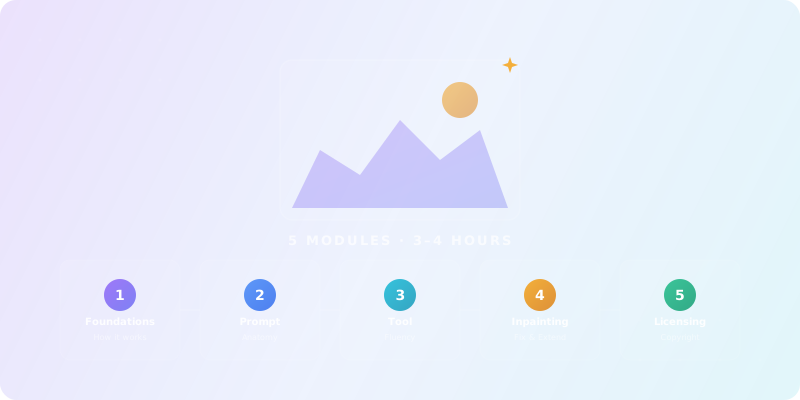
This course teaches you how modern AI image models actually work, how to write prompts that are precise instead of lucky, and how to move from “cool experiments” to images you can safely use in real projects. You'll practice with multiple tools, learn the anatomy of a strong visual prompt, understand negative prompts, aspect ratios, styles, and finish with practical workflows for inpainting, outpainting, and basic licensing hygiene.

Who this course is for
This course is for designers, marketers, founders, and content creators who want more control over image outputs. It's also for developers and tinkerers who use AI art tools but don't fully understand why results vary, and anyone who needs to create hero images, illustrations, product visuals, or concept art quickly.
No prior ML knowledge required. Basic familiarity with any AI chat tool is helpful but not mandatory.
Designers & Creators
Marketers & Founders
Developers & Tinkerers
What you'll learn
How Diffusion Models Work
Understand the noise-to-image process so you stop expecting magic and start giving usable constraints.
Prompt Anatomy
Structure prompts with subject, style, composition, lighting, color, detail, and aspect ratio.
Negative Prompts & Control
Tell the model what to avoid — fix anatomy, remove artifacts, and control quality.
Tool Fluency
Adapt prompts across Midjourney-style, DALL·E-style, and Stable Diffusion-style UIs.
Inpainting & Outpainting
Fix, replace, or extend parts of an image with minimal visible seams.
Licensing & Copyright
Navigate ownership, training data ethics, and commercial use with safer patterns.
Foundations: How Text‑to‑Image Models Think
What these models are (and are not)
Modern text-to-image tools are built on diffusion models. They are trained on huge collections of image–text pairs, learn statistical patterns between language and visual features, and generate images by starting from pure noise and iteratively “de-noising” toward something that matches your prompt.
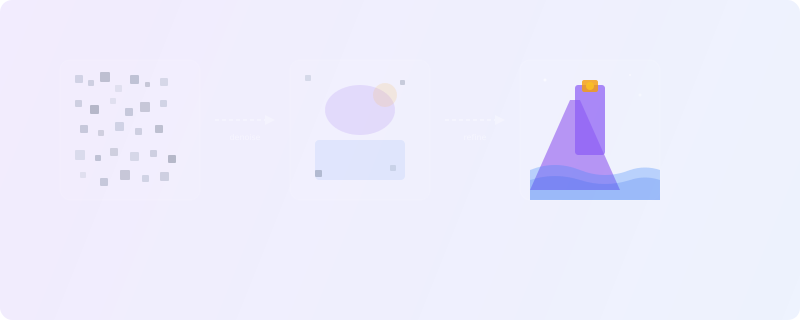
Key insight
Strengths and trade-offs of common tools
Midjourney‑style tools
+ Highly aesthetic outputs; great for concept art and mood; simple chat UI
− Less direct control over internals; hosted; no raw weights
DALL·E‑style tools
+ Strong integration into chat and editing UIs; easy inpainting; good at following natural language
− Parameter control more limited; dependent on provider UI
Stable Diffusion‑style setups
+ Open-weight; can run locally; deeply configurable; supports custom models
− More setup; more knobs to turn; easier to break things
Use hosted tools for fast ideation. Use Stable Diffusion-style setups for local control, custom models, and advanced pipelines. The best workflow often combines both.
Your Baseline Run
- 1Pick any one tool you already have access to.
- 2Write the shortest possible prompt for your current idea (e.g., "cool fantasy forest").
- 3Generate 4 images.
- 4Then, without changing the idea, write a much more detailed prompt (using Module 2 structure) and generate 4 more.
- 5Compare: what actually got better? What stayed random?
Prompt Anatomy: Building Images on Purpose
The 7 building blocks of a strong image prompt
The core of this course: learn how to structure prompts so that different tools behave more predictably. Break every prompt into explicit components:
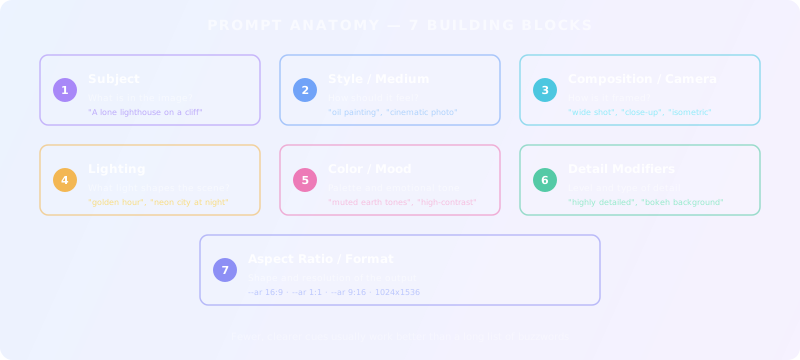
1. Subject
"A lone lighthouse on a cliff above a stormy sea"
2. Style / Medium
"oil painting", "cinematic photograph", "flat vector"
3. Composition / Camera
"wide shot", "close-up portrait", "isometric"
4. Lighting
"soft morning light", "golden hour backlight", "neon city"
5. Color / Mood
"muted earth tones", "high-contrast neon", "monochrome"
6. Detail modifiers
"highly detailed", "minimalist", "volumetric fog"
7. Aspect ratio
--ar 16:9, --ar 1:1, 1024×1536
[Subject] in [environment], [key actions or context].

Style: [photorealistic / illustration / 3D render / flat vector / watercolor / etc.]
Composition: [close-up / medium shot / wide shot / isometric / top-down], [camera angle if relevant]
Lighting: [type of light and time of day]
Color & mood: [palette and emotional tone]
Detail: [level of detail; optional extra effects]
Format: [aspect ratio or resolution hint]

Example:
A lone lighthouse on a steep cliff during a violent storm, waves crashing below.

Style: cinematic photograph, long exposure
Composition: wide shot from sea level, lighthouse off-center (rule of thirds)
Lighting: dramatic lightning in the background, overcast sky, subtle light from lighthouse
Color & mood: desaturated blues and grays, moody, tense atmosphere
Detail: highly detailed water spray, sharp rocks, motion blur on waves
Format: 16:9 landscape
Styles and references without copying
Using style words responsibly means referencing genres, eras, and aesthetics (“in the style of 80s anime”, “mid-century modern poster”) rather than naming living artists. Combining multiple influences works best when you keep it focused: fewer, clearer style cues usually produce better results than a long list of buzzwords.
Avoid “style soup”
Negative prompts — telling the model what to avoid
Your main prompt says “what you want.” A negative prompt says “what you explicitly don't want.” Common categories:
Anatomy issues
extra limbs, extra fingers, bad anatomy, malformed hands, distorted face
Image quality
blurry, low resolution, noisy, jpeg artifacts
Unwanted text
watermark, text, logo, signature
Style exclusions
cartoon, anime, 3D render (if you want a clean photo)
Less is more
Negative prompt:
deformed, bad anatomy, disfigured, poorly drawn face, poorly drawn hands,
extra limbs, extra fingers, blurry, low resolution, watermark, text, logo
Before/After Prompt Lab
- 1Take a simple idea (e.g., "business team in an office").
- 2Generate once with a 3–4 word prompt.
- 3Then re-generate using the full 7-block template and a short negative prompt.
- 4Compare anatomical correctness, composition, and style.
- 5Write down what changed because of each prompt component.
Working Across Midjourney, DALL·E, and Stable Diffusion
UI patterns and what you can control
The goal of this module is tool fluency: taking the same mental model of a prompt and adapting it to different UIs and parameter sets. For each style of tool, understand:
How you enter prompts
Chat-style (Midjourney) vs. form fields (SD UIs) vs. integrated editors (DALL·E)
How you set aspect ratio
--ar flags, explicit width×height, or dropdown menus
How you apply negative prompts
Explicit box, prompt syntax, or settings panel
How you iterate
Re-roll, variations, upscales, seeds, remix/edit modes
Seeds and reproducibility
A seed is a number that initializes the random noise the model starts from. Same seed + same prompt + same settings = same (or very similar) image. This matters when you want to:
- Reproduce a favorite image exactly
- Gently tweak a good result by changing only one prompt element
- A/B test specific changes (e.g., lighting only) while keeping everything else constant
Trade-off
Moving between tools
A practical pattern many professionals use:
1. Fast ideation (hosted tool)
Use a Midjourney-style or DALL·E-style UI to quickly explore visual directions and discover a look.
2. Rebuild in SD-style pipeline
Recreate successful prompts in a Stable Diffusion-style setup for local control, custom models, inpainting/outpainting, and fine-tuning.
Common Mistakes That Waste Your Time
Based on patterns from thousands of AI image generation users — avoid these from day one.
Prompt stuffing
Adding 50+ keywords hoping more = better. Models have attention limits — after ~75 tokens, later words get ignored. Keep prompts focused.
Ignoring aspect ratio
Generating square images then cropping. Set the right aspect ratio from the start — it fundamentally changes composition.
Re-rolling instead of refining
Generating 100 images hoping for a lucky one. Instead: analyze what's wrong, adjust one prompt element, re-generate with a seed.
Expecting text rendering
Most models still struggle with text in images. Add text in post-production (Figma, Canva) instead of fighting the model.
The 80/20 rule of AI images
Model Comparison: Strengths at a Glance
Use this table to pick the right tool for your specific task. Updated for current-generation models.
| Capability | Midjourney | DALL·E 3 | Stable Diffusion / Flux |
|---|---|---|---|
| Aesthetic quality | Excellent — best default aesthetics | Very good — natural, clean | Good — depends on model/LoRA |
| Prompt following | Good — interprets loosely | Excellent — very literal | Good — highly configurable |
| Text in images | Improving (v6+) | Best — reads text well | Flux: good; SD: weak |
| Inpainting | Basic (vary region) | Good (ChatGPT editor) | Excellent (ComfyUI/A1111) |
| Local/private use | No — cloud only | No — cloud only | Yes — runs on your GPU |
| Custom models | No | No | Yes — LoRAs, fine-tunes |
| Best for | Concept art, mood boards, marketing visuals | Text-heavy designs, precise scenes, quick edits | Full control, batch work, custom styles, privacy |
Beyond Text-to-Image: ControlNet & Image-to-Image
When text prompts alone aren't enough — these techniques give you precise spatial control.
Image-to-Image (img2img)
Feed an existing image as a starting point instead of pure noise. The model transforms it based on your prompt while keeping the overall structure.
Use cases: Style transfer (photo → illustration), refining AI outputs, turning sketches into polished images.
ControlNet
Guide generation with structural inputs: edge maps, depth maps, pose skeletons, or segmentation masks. The model follows the structure while applying your style prompt.
Use cases: Matching exact poses, preserving architecture, consistent character design, product photography angles.
When to use these
Inpainting & Outpainting: Fixing and Extending Images
What inpainting and outpainting actually are
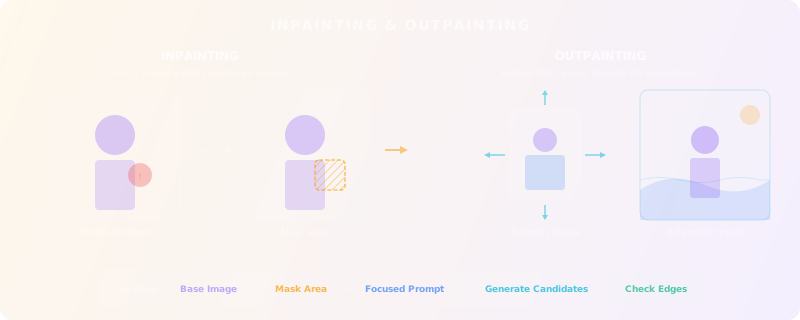
Inpainting
Remove, replace, or fix parts inside an existing image. Fix hands or faces, change clothing, adjust background elements, remove unwanted objects.
Outpainting
Extend the canvas beyond its original boundaries. Turn a square image into a cinematic wide shot. Add sky, foreground, or environment around a subject.
Both use the same diffusion process, but with masks that tell the model where to regenerate. Think of it as AI-powered image editing, not generation from scratch.
Inpainting workflow (step-by-step)
1. Start with a base image
Either AI-generated or a photo (respecting policies and rights).
2. Mask the area to change
Use a brush to cover the region to remove/replace. Optionally expand the mask slightly for smoother blending.
3. Write a focused prompt for the masked area
Be specific about what should appear and how it should match the rest of the image.
4. Generate multiple candidates
Pick the one that blends best; re-run with adjusted prompts if needed.
5. Check edges and consistency
Watch for mismatched lighting, perspective errors, or repeated patterns.
We are editing only the masked area of this image.

Goal: [what should change, in plain language]
Keep: [what must remain consistent – perspective, lighting, style, color grading]
Avoid: [what would break the illusion – duplicate limbs, sharp edges, mismatched shadows]

Example:
Goal: Replace the cluttered background with a soft, blurred office interior.
Keep: Subject's pose, lighting direction (from left), warm color balance, shallow depth of field.
Avoid: Hard cut-out edges, extra people, visible text or logos in background.
Outpainting workflow (step-by-step)
1. Extend the canvas
Add blank space in your tool (e.g., left and right for a banner).
2. Mask the new blank area
Select the newly added empty region.
3. Prompt what should appear
Reference the existing image: "continuation of the beach with soft waves, same lighting and time of day."
4. Iterate in sections
Extend in smaller steps if needed to keep control over consistency.
Fix Then Extend
- 1Take one of your earlier images (preferably with a small flaw).
- 2Run an inpainting pass to fix one issue (e.g., hand, background object).
- 3Then outpaint to extend in at least one direction (e.g., create a hero banner from a square image).
- 4Compare before/after and identify where the AI edit is still visible and why.
Licensing, Copyright & Responsible Use
Who owns AI-generated images?
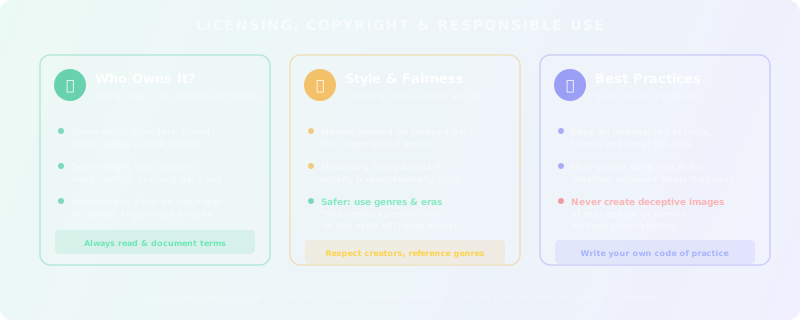
This is not legal advice — but you need enough grounding to avoid naive mistakes:
- Many commercial providers grant users broad rights to use outputs, subject to their content policies.
- Open-weight models run locally give you more technical control, but training data questions may still affect risk.
- Jurisdictions differ on whether purely AI-generated works are protected by copyright at all.
Always document
Training data, style, and fairness
Some models are trained on large scraped datasets that include copyrighted works and artists' styles. This raises ongoing legal and ethical debates. Key points:
- Mimicking a living artist's signature style or name in prompts can be legally and reputationally risky, even if technically possible.
- Safer patterns: refer to genres, eras, and general aesthetics (“mid-century modern poster”, “film noir lighting”) rather than specific contemporary artists.
Safer usage patterns
Keep an internal log
Track which tools you used, what rights their terms grant, and whether any human-authored content was used as input (e.g., client logos, stock photos).
High-profile work
Consider limiting AI use to ideation and reference, then recreating final assets manually or with licensed stock blended in.
Never create deceptive images
Never use AI to create misleading “documentary” images of real people or events without clear labeling. That crosses into deepfake territory and can be illegal or harmful.
Your Personal Usage Policy
- 1Write 8–10 bullet points that define your personal code of practice.
- 2Include: what you will happily use AI image generation for (e.g., early concepts, thumbnails, internal decks).
- 3Include: what you will only do with clear extra checks (e.g., public ads, editorial imagery).
- 4Include: what you will not do (e.g., imitate living artists, create deceptive images of real individuals).
One Concept, Three Tools, and a Mini Set
To close the course, complete a small, realistic project that ties everything together.
Brief
Choose one concept (for example, “homepage hero image for a digital health startup” or “cover art for a productivity newsletter”) and:
- Define the creative direction in 5–10 written bullet points.
- Generate first drafts in two different tools (e.g., a Midjourney-style tool and a Stable Diffusion-style UI).
- Use prompt anatomy and negative prompts to refine at least one direction in each tool.
- Apply inpainting or outpainting to fix one issue and adjust composition.
- Write a short note on licensing and risk: which tool you would use for a commercial campaign with this concept and why.
By the end, you have a small but concrete portfolio piece and a repeatable workflow you can apply to future projects — without treating image generation as a mysterious black box.
Frequently Asked Questions
Do I need a powerful GPU to follow this course?
No. Most exercises work with hosted tools (Midjourney, DALL·E, or web-based SD UIs). Running Stable Diffusion locally is optional and covered as an advanced path.
Can I use AI-generated images commercially?
It depends on the tool's terms of service and your jurisdiction. Module 5 covers this in detail. The short answer: read the terms, keep a log, and for high-stakes work, consider using AI for ideation only and recreating finals manually.
Which tool should I start with?
Start with whatever you already have access to. The prompt anatomy principles from Module 2 work across all tools. Module 3 will help you understand the differences and when to switch.
How is this different from the Designers guide?
The AI Tools for Designers guide covers the full design workflow (UI, brand systems, client work). This course goes deep on image generation specifically — prompt anatomy, negative prompts, inpainting, outpainting, and licensing.
Ready to Apply What You Learned?
Prompt Engineering
Write better prompts across every AI tool — not just image generators.
Start LearningTest Your Knowledge
Complete this quiz to test your understanding of AI image generation concepts and best practices.
Loading quiz...
Key Insights: What You've Learned
AI image models start from noise and de-noise toward your prompt — they approximate patterns, not understanding. Give them clear constraints, not vague hopes.
Structure every prompt with 7 building blocks (subject, style, composition, lighting, color/mood, detail, aspect ratio) and use targeted negative prompts. Predictability beats luck.
Use inpainting and outpainting to fix and extend images. For commercial work, always document tool terms and consider using AI for ideation only.